
Here’s how to put two photos together: place them side by side in a free Google Photos collage, or bring everyone into one new picture with PixLab Merge from Printerpix. When someone was behind the camera or lives too far away, you can create the photo that never got taken. Think of a canvas for grandparents with the whole family on one sofa.
Do you want them side by side or in one picture?
If you love each photo just as it is, choose a collage to keep both backgrounds. Merge brings people together, though you’ll need to check what has changed before printing.
How do you put two photos side by side?
For a free collage on an iPhone, iPad or Android phone:
- Open the Google Photos app.
- Select your photos, up to six.
- At the bottom, tap “Create Collage”.
- Choose a template and save.
On a computer:
- Go to photos.google.com.
- Hover over a photo and click the tick mark. Select up to nine photos this way.
- At the top, click “Create new”, then “Collage”.
These instructions come from Google’s help page. Printerpix doesn’t make this tool, and Google says some features may not be available on all devices.
For more guidance, read how to make a photo collage or how to make a collage canvas.
How do you put two photos together in one picture?
For the family picture you’re missing, combine two photos into one with Merge, one of Printerpix’s PixLab AI photo tools.
You need a free PixLab account. Sign-up asks for your date of birth to confirm you’re 18 or older; existing Printerpix customers can use their Printerpix account details.
PixLab’s terms ask you to confirm that you own each image or have permission to use it, and that anyone shown has agreed to this use. Ask the people in the photos first.
1. Add your photos
Choose two to six photos, numbered in order. The screen explains: “Each photo contributes its people, pets or scenery to the combined picture”.
2. Choose how they come together
Under “How Should They Come Together?”, choose “Group photo”, “People + pet” or “Into the first scene”.
For “Into the first scene”, put your preferred background photo first. The other subjects are placed into that setting. For a plain group photo, order matters much less.
3. Check the people count and instructions
The box labelled “How many people in total? (optional, helps accuracy)” lets you give a total.
Keep the written instructions, edit them or write your own. The grey hint says you can leave the text blank for a natural combined photo.

4. Run the merge
Ready? Select “Merge Photos”. The cost is shown beside the button before you start.
PixLab advises asking for the merge and little else. For further changes, use its Edit tool afterwards, one thing at a time.
What happened when we tried it?
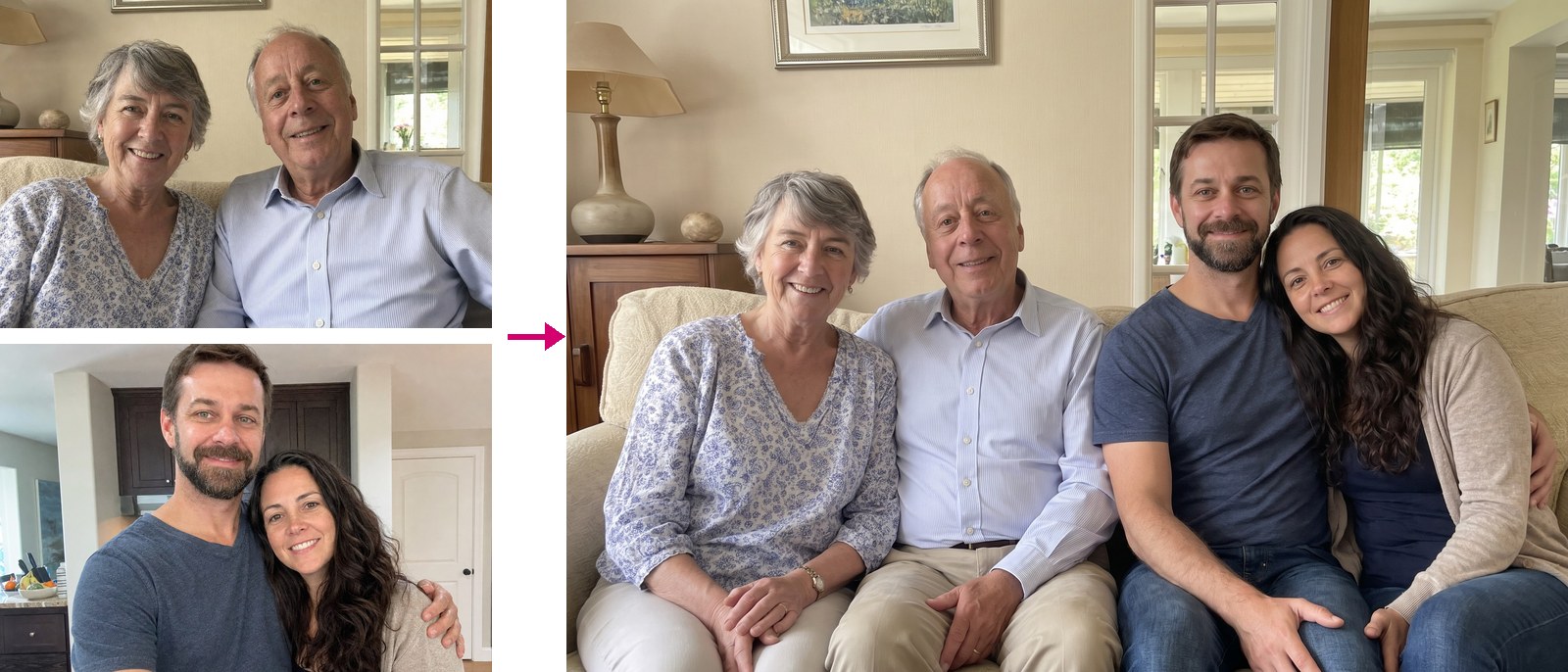
We tested Merge on 5 November 2026. This was our first run of two, using photos made with AI, so no real family is shown.
The first showed an older couple on a sofa in their living room; the second showed a younger couple hugging in a kitchen. Both photos stopped at the chest.
We chose “Into the first scene”, entered 4 in the people box and kept PixLab’s sentence word for word:
“Place the subjects from the other photos into the scene of the first photo, naturally and realistically. Keep every subject exactly as they appear.”
The merge took 33 seconds, matching the screen’s stated usual time of about 33 seconds.
All four were sitting on one sofa, in a living room like the older couple’s. All four faces looked like the originals to us.
What should you check before you print it?
Merge generates the result rather than cutting and pasting the originals.
In our first run, the room was rebuilt. The lamp, framed picture and window remained, in a similar but different arrangement, and the sofa was longer.
Because the originals stopped at the chest, Merge invented legs and trousers, the older woman’s watch and ring, and a navy top under the younger woman’s cardigan.
The younger man’s hand on his knee looked a little too large to us. Hands are worth a closer look.
Before printing, compare faces, hands and jewellery with the “Source photos” beside the result. Our two runs don’t guarantee how another picture will turn out.
How do you add more people?
On our second run, also on 5 November 2026, we pressed “+ Merge” on the first result. This puts the finished picture in as photo 1.
We added a third AI-made photo: a boy and girl laughing on a rug in a different living room. We chose “Into the first scene”, entered 6 in the people box and kept PixLab’s sentence.
After 37 seconds, all six were together: four adults on the sofa and two children on the floor in front. All six faces looked like the originals to us. The children kept their clothes and laughing faces.
The room was rebuilt again, with a different sofa shape and a new cabinet. Everyone’s lower half was redrawn: the older woman now wore cropped trousers, and she and the younger woman were barefoot.
The result page keeps “Merge 2” and “Merge 1” as tabs, so you can return to the earlier version.

What can you make with the finished picture?
Download the result or select “Print”. This opens “Print This Image”, with Canvas, Framed Canvas, Metal, Poster, Tile and Cushion choices.
The preview offers separate “3D” and “In a room” views. “In a room” shows your picture on a wall above a sofa, to scale at your chosen size: here, the family of six on a 76 x 50cm canvas.

A canvas for grandparents puts everyone together on their wall.
For a couple’s wall, try a framed canvas or metal print.
A photo cushion keeps familiar faces close for someone living far from the family.
Still deciding? Read what to get someone when you have no idea.
Frequently asked questions
How do I put two photos together on my phone?
For two photos side by side, open Google Photos, select both pictures and tap “Create Collage” at the bottom, then choose a template and save. To combine their subjects into one new picture, use PixLab Merge from Printerpix with a free PixLab account.
Can I add someone to a photo who wasn’t there?
PixLab Merge can combine someone from another photo with the subjects in your first photo. Choose “Into the first scene” and put your preferred setting first. It creates a new picture, so the scene and other details may change.
Will everyone still look like themselves?
There’s no guarantee that every face will be right. In our two PixLab Merge runs on 5 November 2026, all four, then all six faces looked like the originals to us. Before printing, compare faces, hands and jewellery with the source photos.
Is PixLab free?
A free PixLab account is enough for about six merges, once per email address. You pay nothing to try it. Prints cost extra. More merges come in one-off packs with no subscription, and what you buy doesn’t expire while your account is open.
